
Listening List
Mark albums and tracks as listened, with inline indicators across Spotify.
Features
Section titled “Features”- Mark albums and tracks as listened via right-click context menu
- Want-to-listen list for albums: bookmark badge until you’ve heard it, then it flips to listened automatically
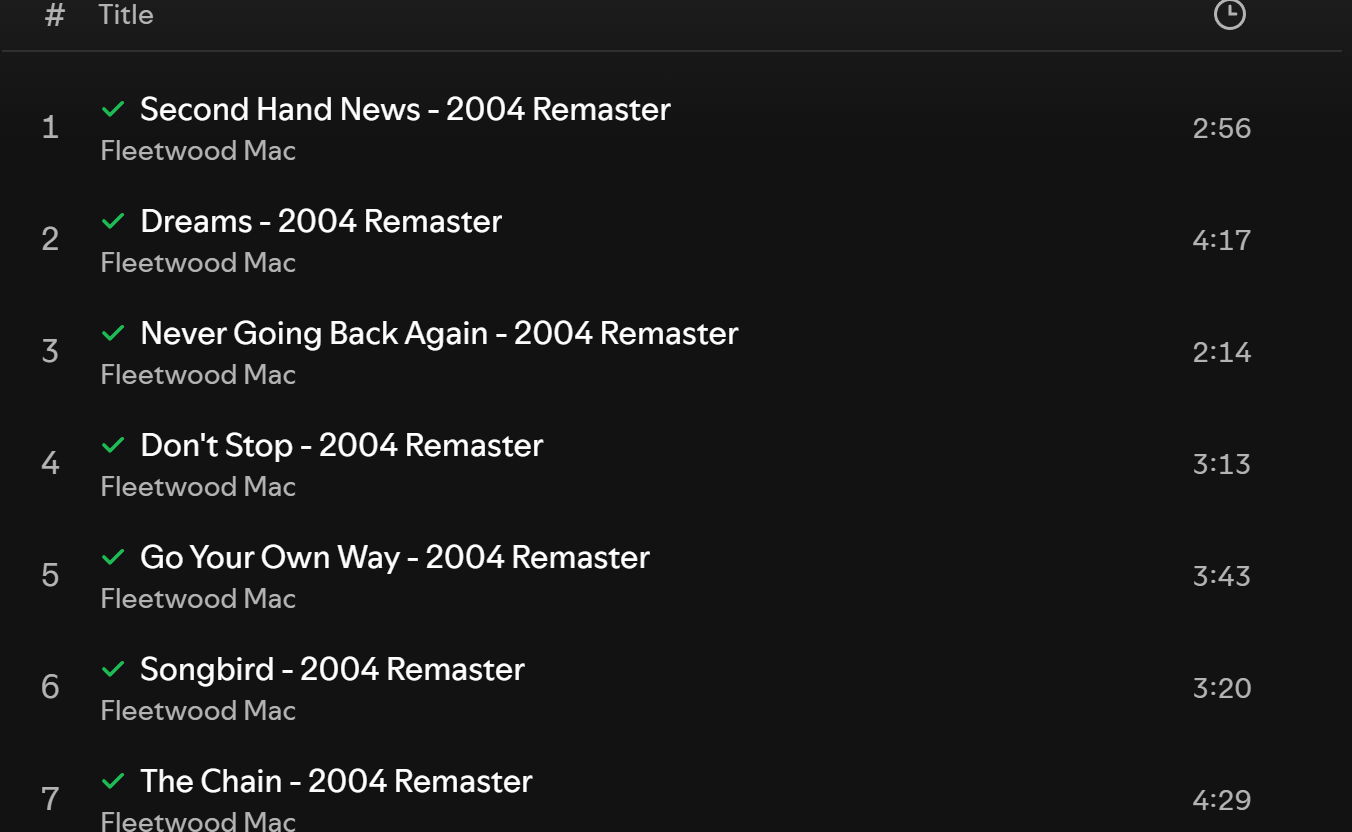
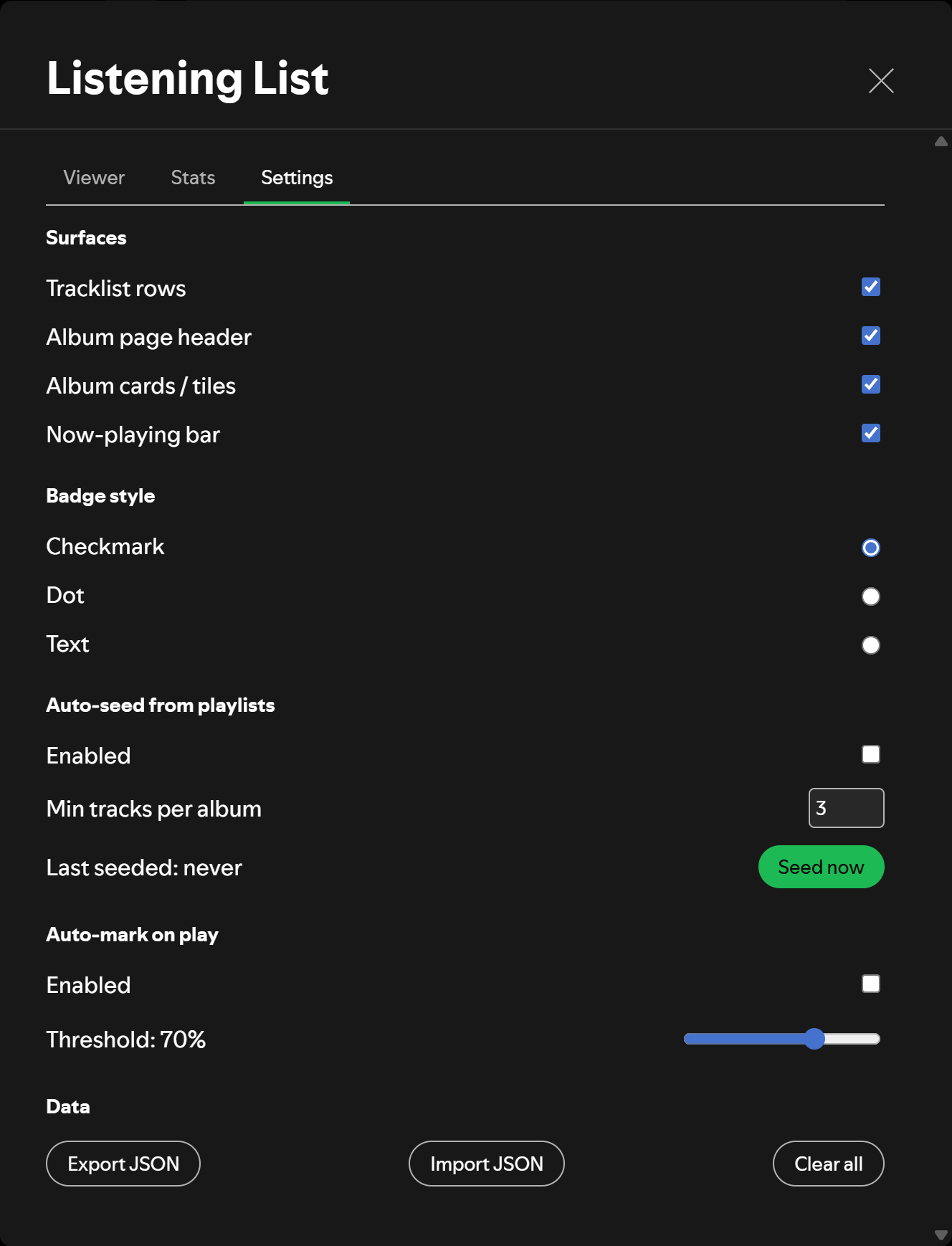
- Inline badge surfaces (tracklist rows, album page header, album cards, now-playing bar) — each toggleable
- Auto-seed listened albums from your playlists (threshold configurable)
- Auto-mark tracks past a play-progress threshold (threshold configurable)
- Local-only storage; nothing leaves your machine
- Export / import JSON
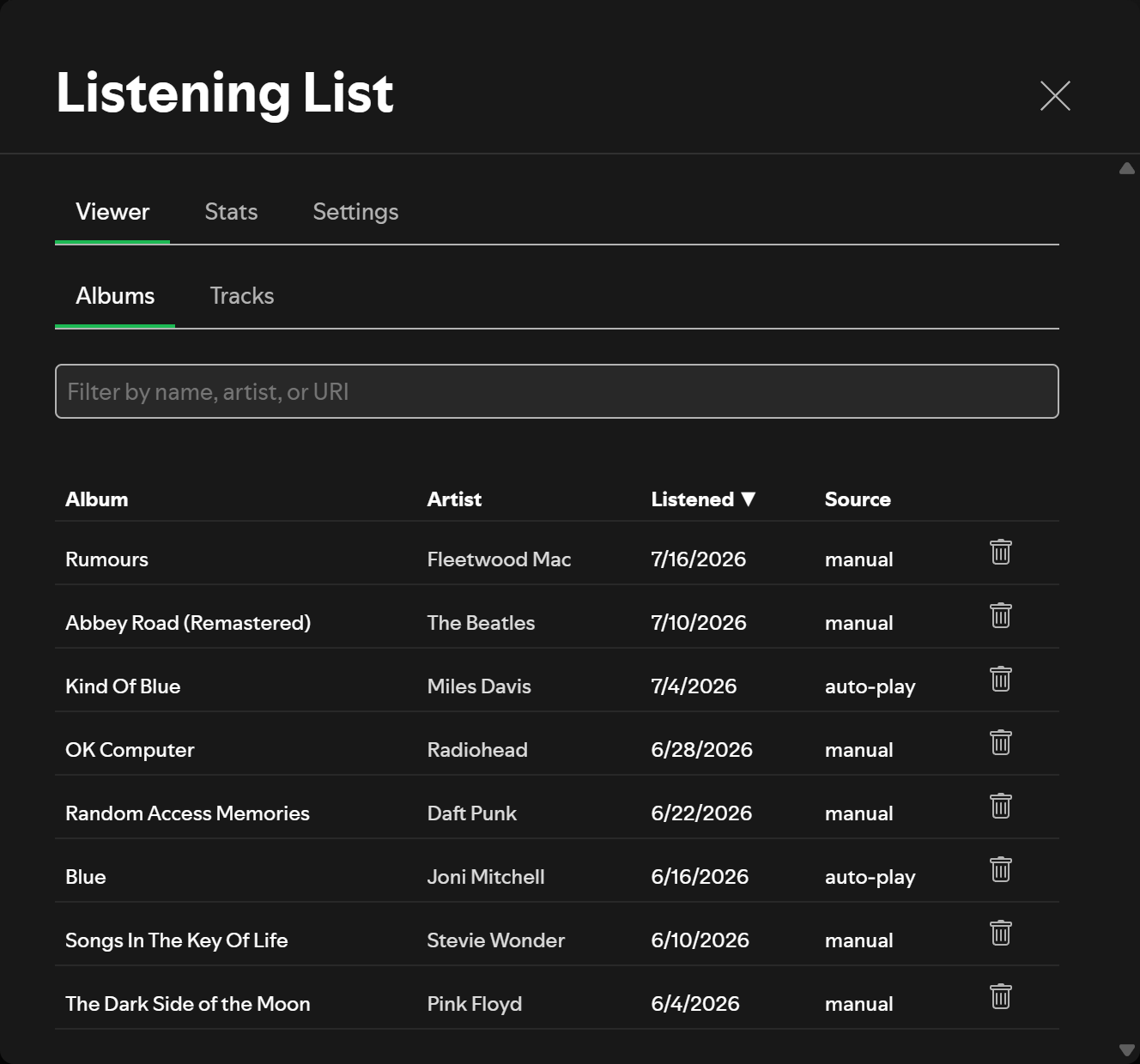
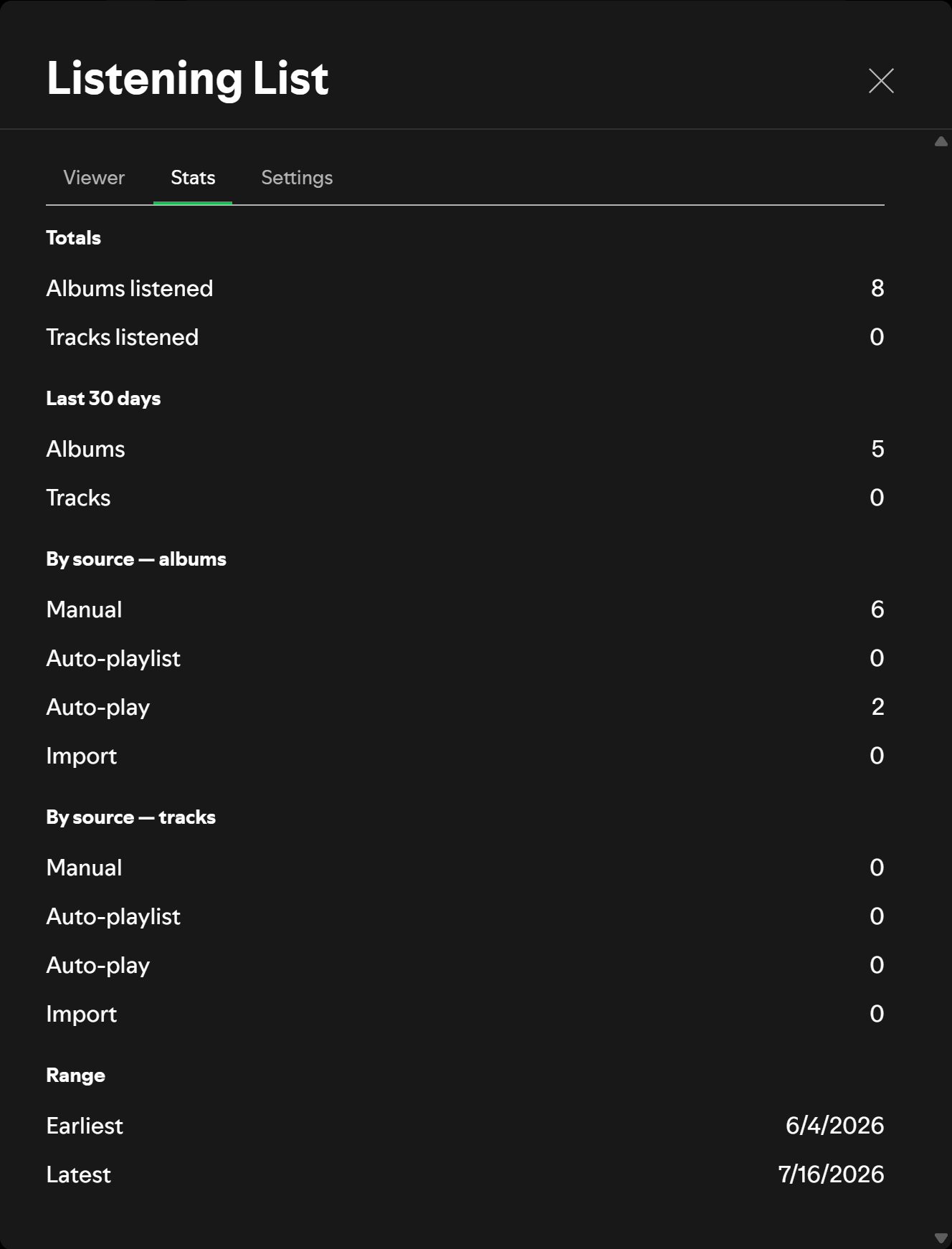
- Built-in viewer (sortable list) and stats summary
How It Works
Section titled “How It Works”The extension stores two LocalStorage records: your listened items and your configuration. DOM observers attach small badges to tracklist rows, album headers, album cards, and the now-playing bar based on whichever surfaces you enable.
Installation
Section titled “Installation”Prerequisites
Section titled “Prerequisites”- Spicetify installed and applied at least once
- Download
listening-list.js - Place it in your Spicetify extensions folder:
- Windows:
%APPDATA%\spicetify\Extensions\ - macOS / Linux:
~/.config/spicetify/Extensions/
- Windows:
- Register:
spicetify config extensions listening-list.js - Apply:
spicetify apply
Right-click any track or album → “Mark as listened”. A badge appears in enabled surfaces. Right-click an album → “Want to listen” to queue it up; it shows a bookmark badge and moves to listened once you mark it or (with auto-mark on play enabled) play enough of its tracks. Open the profile menu → “Listening List” to access Settings, the Viewer (Albums / Tracks / Want to listen), and Stats.
Screenshots
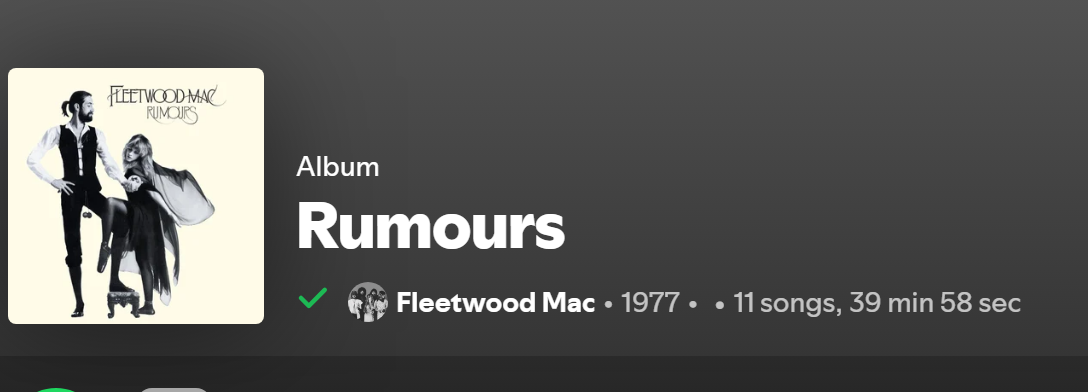
Section titled “Screenshots”A marked album gets a badge on its page header:
The Viewer lists everything you have marked, with filtering and sorting:
Stats summarises totals, recent activity, and how each item got marked:
Settings
Section titled “Settings”Accessed via profile menu → “Listening List”. Toggle surfaces, choose badge style, enable auto-seed / auto-on-play, export/import data, clear all.
Troubleshooting
Section titled “Troubleshooting”- Badges not appearing? Confirm the relevant surface toggle is on in Settings and reload Spotify.
- Auto-seed fails? The Spicetify Platform API for playlists is undocumented and varies by Spotify version. Check DevTools console for the error.
- Open DevTools: enable once via
spicetify enable-devtools, thenCtrl+Shift+Iinside Spotify.
License
Section titled “License”MIT — see LICENSE.
Independent project. Not affiliated with or endorsed by Spotify or Spicetify.