
Pin more than 20 playlists in Spotify
Spotify lets you pin up to 20 items at the top of Your Library. To pin more than that on the desktop app, or to keep pinned items in their own section instead of inside the library list, you can add the free Enhanced Pins extension through Spicetify. This guide covers when Spotify’s own pins are enough, and how to set up Enhanced Pins when they aren’t.
What Spotify’s own pins do
Section titled “What Spotify’s own pins do”Since July 8, 2026, Spotify lets you pin up to 20 favorites to the top of Your Library, on Free and Premium (Spotify’s announcement, Thurrott). It was 4 before that.
Native pins need nothing installed, and because they’re part of Your Library they follow your account to the phone app and the web player too. If 20 pins is enough for you, use Spotify’s own pins.
Where they stop short:
- There’s a hard cap of 20.
- Pinned items stay inside the library list, in the same scrolling column as everything else.
What Enhanced Pins adds
Section titled “What Enhanced Pins adds”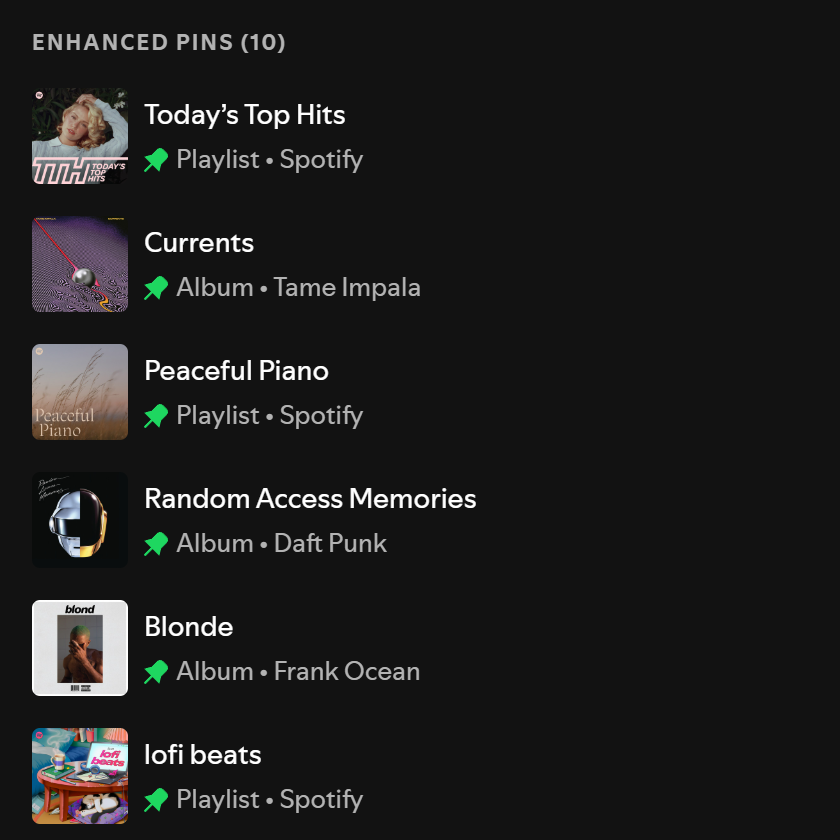
Enhanced Pins adds a separate section at the top of the desktop app’s left sidebar:
- No limit on pinned playlists, albums, podcasts and audiobooks, plus Liked Songs, Your Episodes and Local Files.
- Sorting: your own order (drag and drop, or Move to top/bottom), alphabetical, by type, or most recently pinned.
- Show more / show less: show only the first few pins, with the rest behind an “N more” button.
- No duplicates: pinned items are hidden from the regular library list (on by default, and you can turn it off).
- Icons: mark pins with a preset icon or any emoji.
- Backup: export your pins and settings to a JSON file and import them on another computer.
Each pin has its own right-click menu with Play, Shuffle Play, Add to Queue, Start a Jam, radio, Download, and editing for playlists you own (Liked Songs, Your Episodes and Local Files get a shorter set). It’s a shorter menu than Spotify’s: for anything else, such as adding to a folder, open the item first.
Set it up
Section titled “Set it up”1. Install Spicetify
Section titled “1. Install Spicetify”Enhanced Pins runs through Spicetify, a free command-line tool that customizes the Spotify desktop app. Follow Install Spicetify and extensions first.
2. Install Enhanced Pins
Section titled “2. Install Enhanced Pins”With the Spicetify Marketplace installed:
- In Spotify, open Marketplace (the shopping-cart icon at the top left) and stay on the Extensions tab.
- Search for
Enhanced Pins. If it doesn’t show up, click Load more (» at the bottom of the list) until it does. Marketplace only searches the extensions it has loaded so far. - Hover the Enhanced Pins card, click its download button, then click Reload now.
To install it by hand instead, see Enhanced Pins → Installation.
3. Pin your playlists
Section titled “3. Pin your playlists”Right-click any playlist, album, podcast or audiobook in Spotify, or Liked Songs, and choose Enhanced Pin. It appears in the Enhanced Pins section at the top of the sidebar. Click a pin to open it, or double-click to start playing it.
4. Organize them
Section titled “4. Organize them”Click the gear icon in the section header to open the settings:
- Sort by: Custom keeps the order you drag pins into, and is the only mode where dragging works. Alphabetical, Type and Recently pinned sort for you.
- Max visible pins: show only the first few pins. With 20 pins and this set to 8, the other twelve sit behind a “12 more” button. The default, 0, shows them all, and no button appears while you have no more pins than the limit.
- Hide pinned items from library list: on by default, so a pinned playlist doesn’t also appear further down.
5. Back them up
Section titled “5. Back them up”Enhanced Pins stores your pins on this computer only, so they don’t sync to your phone or other computers. To move them, open the settings, use Export pins & config (JSON), then Import from JSON… on the other computer. An import replaces whatever pins and settings that computer already has, then reloads Spotify.
Limits to know about
Section titled “Limits to know about”- Desktop only. Spicetify modifies the Windows, macOS and Linux desktop app. Enhanced Pins doesn’t appear on your phone or in the web player, where Spotify’s own pins still apply.
- Spotify updates. An update can undo Spicetify’s changes. Run
spicetify backup applyto restore them; see Troubleshooting if something stays broken. - Mixing both kinds of pin. Spotify’s own pins keep working, and an enhanced pin’s right-click menu has Pin playlist (the label for every type) to add it to them too, while you’re under Spotify’s 20. Liked Songs, Your Episodes and Local Files don’t offer it. While Hide pinned items from library list is on, an item that’s in both places shows only in the Enhanced Pins section, because the setting also hides its row among Spotify’s pins.
Remove it
Section titled “Remove it”Installed from Marketplace: open Marketplace’s Installed tab, remove Enhanced Pins, and reload. Installed by hand: run spicetify config extensions enhanced-pins.js- (with the trailing -), then spicetify apply. Your pins stay in local storage, so they come back if you reinstall.
Independent project. Not affiliated with or endorsed by Spotify or Spicetify.