
Show bitrate, genre and year for local files in Spotify
Spotify can play the music files on your computer, but its Local Files page shows only a few columns, and you can’t add genre, year, album artist or bitrate to it. Those details are already in your files’ tags. The free Local Files+ extension reads them and adds them to the Local Files page as columns you can sort and filter. This guide sets it up.
What Spotify shows for local files
Section titled “What Spotify shows for local files”Spotify doesn’t offer year, genre, album artist, file type or quality as columns for local files, and has nothing to sort or filter by them. The page’s column picker (“Change visible columns”) only toggles a couple of columns, such as Album. People have asked Spotify for more columns on its community board (Spotify Community).
What Local Files+ adds
Section titled “What Local Files+ adds”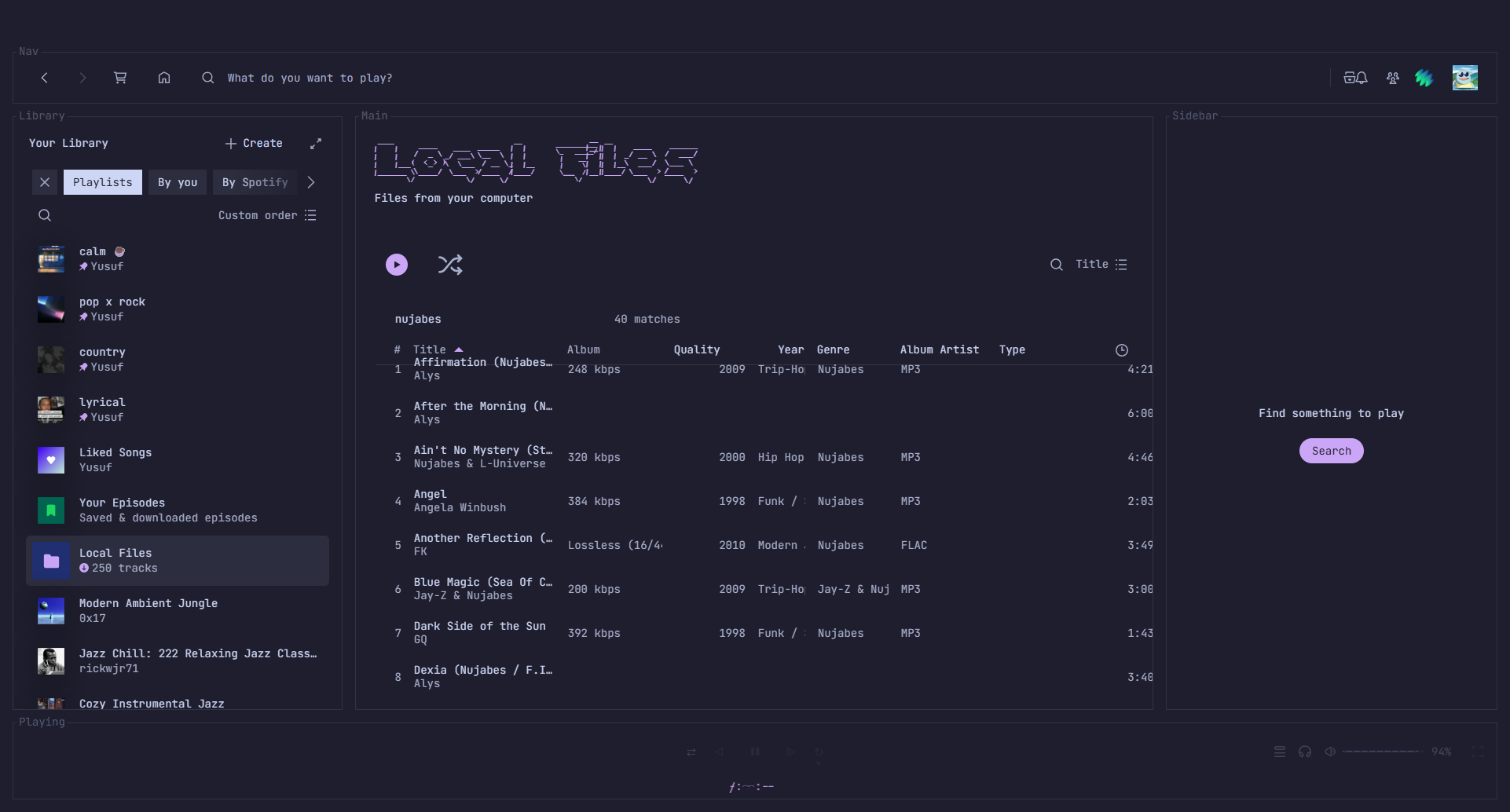
- New columns: Quality, Year, Genre and Album Artist are on by default. Artist, Type, Size, Date Modified, # (track number), BPM and Folder are optional. Turn any of them on or off in Spotify’s own “Change visible columns” menu.
- Quality: an average bitrate for lossy files (for example
320 kbps), worked out from each file’s size and length, orLosslessfor FLAC, ALAC and WAV, with the bit depth and sample rate for FLAC (for exampleLossless (24/96.0)). - Sorting: click a new column’s header to sort by it; click again to reverse.
- Filtering: a filter box above the list. See Filter your library.
- Missing tags: a small ⚠ after any track that has no album, artist or track number, so you can find what still needs tagging.
Set it up
Section titled “Set it up”1. Turn on Local Files in Spotify
Section titled “1. Turn on Local Files in Spotify”In Spotify’s settings, turn on Show Local Files and add the folder your music is in as a source. Your files then appear under Local Files in Your Library.
2. Install Spicetify and the extension
Section titled “2. Install Spicetify and the extension”Local Files+ runs through Spicetify, a free tool that customizes the Spotify desktop app. Follow Install Spicetify and extensions first. Then install Local Files+ from the Spicetify Marketplace by searching for Local Files+, or by hand. Both ways are described step by step in Local Files+ → Install.
3. Give it your music folder
Section titled “3. Give it your music folder”Open your profile menu (your avatar at the top right), choose Local Files+, then Choose music folder, and pick the same folder you added to Spotify in step 1 in the folder picker that opens. Local Files+ asks for read access only, and only to that folder.
The first scan reads every audio file in the folder; the settings window shows its progress and then how many files it indexed. Later scans (Rescan) only re-read files that changed.
4. Open Local Files
Section titled “4. Open Local Files”Go to Local Files in Your Library. The Quality, Year, Genre and Album Artist columns are there, filled in from your tags. Local Files+ pairs each track with its file by the path Spotify reports, or failing that by title tag or file name.
Filter your library
Section titled “Filter your library”Type into the filter box above the list. Words are combined, so every one has to match.
| Filter | Shows |
|---|---|
lossless |
Lossless files: FLAC, ALAC and WAV |
flac, mp3, m4a, ogg, opus, wav |
Files of that type |
year:2019 |
Tracks tagged with that year |
genre:jazz |
Genres containing “jazz” |
bitrate:>256 |
Lossy files of 256 kbps or more (bitrate:<192 for 192 or less) |
missing:album |
Tracks with no album (also missing:artist and missing:track, for tracks matched to a file) |
folder:nujabes |
Files in a folder whose path, from the folder you chose down, contains “nujabes” |
| any other word | Title, artist, album or folder containing it |
For example, flac year:2019 genre:jazz lists FLAC jazz from 2019.
How it reads your files
Section titled “How it reads your files”Local Files+ uses the browser’s File System Access API to read the folder you choose, inside Spotify. It reads the tags straight from the files: ID3 tags in MP3s, Vorbis comments in FLAC, and MP4 tags in M4A (where it also spots ALAC as lossless). It installs nothing else, runs nothing in the background, and sends nothing off your computer. The results are cached so later scans are quick.
Limits to know about
Section titled “Limits to know about”- Desktop only. Spicetify modifies the Windows, macOS and Linux desktop app; the columns don’t appear on your phone or in the web player.
- Some formats have no tag columns yet.
.ogg,.oga,.opus,.wavand.wmafiles are listed with their type and size (WAV also shows as Lossless), but their tags aren’t read..aactags are read only when the file has an ID3 tag. - Bitrate is an average. It’s the file’s size divided by its length, rounded to the nearest 8 kbps, and embedded cover art counts toward the size: 1 MB of artwork on a 3-minute song adds about 44 kbps.
- Folder access can lapse. The columns keep showing what was last scanned, but new or changed files aren’t picked up. If Local Files+ in the profile menu says the folder needs access re-granted, click Re-grant access, then Rescan.
- Spotify updates. An update can undo Spicetify’s changes. Run
spicetify backup applyto restore them; see Troubleshooting if something stays broken.
Remove it
Section titled “Remove it”Installed from Marketplace: open Marketplace’s Installed tab, remove Local Files+, and reload. Installed by hand: run spicetify config extensions local-files-plus.js- (with the trailing -), then spicetify apply.
Independent project. Not affiliated with or endorsed by Spotify or Spicetify.